Microsoft Entra Agent ID on Kubernetes
This is part of a multi-part series where we dig into how Microsoft Entra Agent ID works for agent identity. This set of guides will specifically dive deeply into how it works (it’s full token-exchange mechanism) with the goal of getting it working on Kubernetes (not necessarily AKS, but would apply there too) for Agent and MCP workloads. If you’re interested in this, please follow me /in/ceposta for updates!
Part Three: Running on Kubernetes
Source Code: This part covers deploying the Entra SDK sidecar on Kubernetes. The complete Kubernetes deployment configurations, including sidecar setup, can be found in the
kubernetes/directory in the repository. For examples using client secrets (not recommended for production), seekubernetes/client-secret/.
In the previous two parts of this series, we looked at the details of setting up Agent Identity Blueprints, creating Agent Identities, and what the full token exchange looks like. This is important to understand what happens behind the scenes. But to be honest, there is a lot of machinery that needs to happen for this to work, right?
In this section we’ll look at a helper mechanism that hides some of the details: The Microsoft Entra SDK for Agent ID. In fact, for container environments, this SDK is intended to run as a sidecar / helper. The sidecar exposes an HTTP service (default http://localhost:5000/) and some endpoints to help automate the token exchanges.
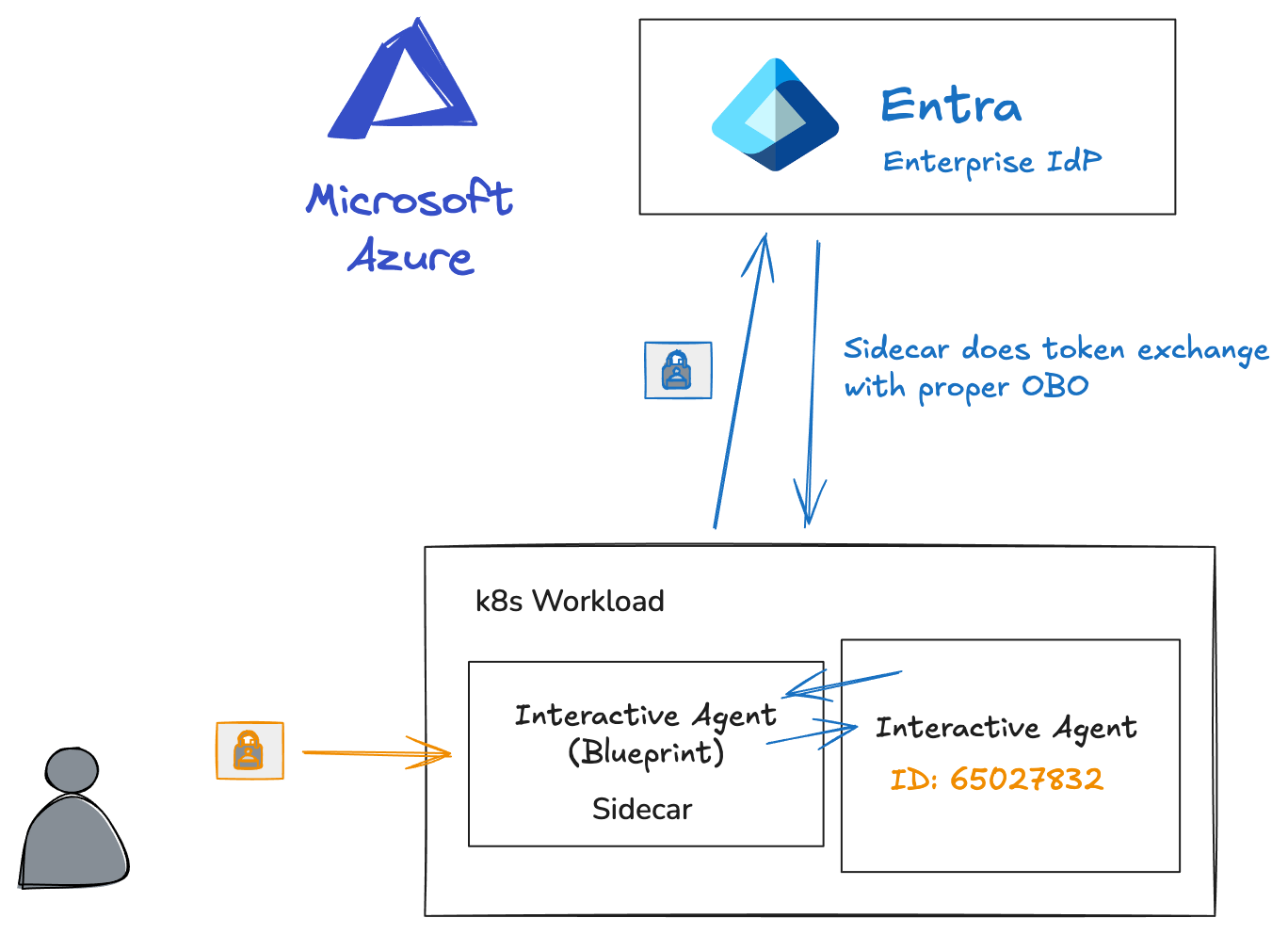
That way, the client agent / application can call these localhost services regardless of what language/framework they used.
Available Endpoints
The sidecar has the following endpoints that the AI agent can use:
| Endpoint | Method | Auth Required | Description |
|---|---|---|---|
/healthz |
GET | No | Health check |
/Validate |
GET | Yes (Bearer) | Validates incoming token, returns claims |
/AuthorizationHeader/{apiName} |
GET | Yes (Bearer) | Gets token using caller’s identity (OBO) |
/AuthorizationHeaderUnauthenticated/{apiName} |
GET | No | Gets token using Blueprint’s app identity |
/DownstreamApi/{apiName} |
POST | Yes (Bearer) | Proxies API call with caller’s identity |
/DownstreamApiUnauthenticated/{apiName} |
POST | No | Proxies API call with Blueprint’s identity |
Please refer to the docs for the most updated descriptions. Also, checkout the GitHub repo for the microsoft-identity-web project.
Deploying the SDK for Entra ID Sidecar
Let’s look at a sample application (simple, curl container) that loads the sidecar and see what it can do for us. Let’s first set up the configuration for the sidecar. In this configuration, we specify the Blueprint (client_id) and the Graph API scopes the sidecar needs. This configuration lives in a Kubernetes configmap (see below) and mounted in the deployment:
apiVersion: v1
kind: ConfigMap
metadata:
  name: sidecar-config
  namespace: entra-demo
data:
  # Azure AD / Entra configuration
  AzureAd__Instance: "https://login.microsoftonline.com/"
  AzureAd__TenantId: "${TENANT_ID}"
  AzureAd__ClientId: "${CLIENT_ID}"

  # Credential source type
  AzureAd__ClientCredentials__0__SourceType: "ClientSecret"

  # Downstream API configuration (example: Microsoft Graph)
  DownstreamApis__graph__BaseUrl: "https://graph.microsoft.com/v1.0/"
  DownstreamApis__graph__Scopes__0: "https://graph.microsoft.com/.default"
  # Default to App Tokens at the moment
  DownstreamApis__graph__RequestAppToken: "true"

  # ASP.NET Core settings
  ASPNETCORE_ENVIRONMENT: "Production"
  ASPNETCORE_URLS: "http://+:5000"
Here we set up the access to the blueprint and the Graph APIs. Note, that we are going to use the blueprint’s client secret from the previous post (Part Two). Note that this is not a production-ready configuration. In the next post (Part Four) we will use workload identity federation to eliminate the client secret. But for now, we’ll use it to try out the sidecar.
Next, let’s look at the deployment:
apiVersion: apps/v1
kind: Deployment
metadata:
  name: demo-app
  namespace: entra-demo
spec:
  replicas: 1
  selector:
    matchLabels:
      app: demo-app
  template:
    metadata:
      labels:
        app: demo-app
    spec:
      containers:
      # Your application container
      - name: app
        image: curlimages/curl:latest
        command: ["sleep", "infinity"]  # Keep container running for testing
        env:
        - name: SIDECAR_URL
          value: "http://localhost:5000"

      # Entra SDK Sidecar
      - name: sidecar
        image: mcr.microsoft.com/entra-sdk/auth-sidecar:1.0.0-azurelinux3.0-distroless
        ports:
        - containerPort: 5000
        envFrom:
        - configMapRef:
            name: sidecar-config
        - secretRef:
            name: sidecar-secret
Here we see a Kubernetes deployment that configures two containers: app and sidecar. There are a few pre-built docker images for the sidecar, and I’m using auth-sidecar:1.0.0-azurelinux3.0-distroless running on Linux/Mac. The sidecar loads the configuration (and client secret) from a configmap and secret. In the ./kubernetes folder of the project repo, you will find a env.example and deploy.sh file that take care of deploying this and substituting the variables from .env. If you are unsure what the right values are, in our previous sessions, our powershell should still have the right values:
Write-Host $tenantId
Write-Host $clientSecret
Write-Host $blueprintAppId
Add those to .env:
CLIENT_ID=
TENANT_ID=
CLIENT_SECRET=
We are going to run this example on a Kind cluster just to be cloud agnostic, but pick your favorite distro. The mechanism is the same for all AKS/EKS/GKE and OpenShift. Though, in OpenShift, you may have to tweak the runtime platform permissions (SCC, etc)
# creat cluster
kind create cluster --name entra-desktop

# deploy sample application with sidecar:
./kubernetes/client-secret/deploy.sh

Creating namespace: entra-demo
namespace/entra-demo created
Deploying to namespace: entra-demo
Applying sidecar-config...
configmap/sidecar-config created
Applying sidecar-secret...
secret/sidecar-secret created
Applying deployment...
deployment.apps/demo-app created
Deployment complete!
kubectl get po -n entra-demo

NAME                        READY   STATUS        RESTARTS   AGE
demo-app-7789658746-q997q   2/2     Running       0          27s
So now we have an app (it’s simple for now, just to illustrate the sidecar, but it could be an AI agent).
As an AI agent, we can leverage the capabilities of the sidecar by calling the localhost:5000 endpoint. For example, let’s run a curl command to check the health of the sidecar:
# Run a command to test health:
kubectl exec -it deploy/demo-app -n entra-demo -c app -- curl localhost:5000/healthz

Healthy%
Here are a few helpful commands to inspect what the sidecar can do:
# Get the blueprint's access token:
kubectl exec -it deploy/demo-app -n entra-demo -c app -- curl -v localhost:5000/AuthorizationHeaderUnauthenticated/graph

# Get the token for the agent's identity:
kubectl exec -it deploy/demo-app -n entra-demo -c app -- curl -v "localhost:5000/AuthorizationHeaderUnauthenticated/graph?AgentIdentity=f3897825-fd03-45f5-90eb-fdbf26135650"

# Make a call to the "downstream" Graph API without messing around with tokens at all -- the sidecar handles all of it
kubectl exec -it deploy/demo-app -n entra-demo -c app -- curl -v -X POST "localhost:5000/DownstreamApiUnauthenticated/graph?AgentIdentity=f3897825-fd03-45f5-90eb-fdbf26135650" -H "Content-Type: application/json"
The sidecar can also help with Agent OBO tokens. Assuming the agent can acquire a user’s token scoped to the blueprint’s API (like we did in Part Two), we can exchange it for an Agent OBO token:
# Do the Agent OBO flow. Note, there is a bug in the sidecar, we need this to get fixed:
# https://github.com/AzureAD/microsoft-identity-web/issues/3643
# We could build our own custom docker image to do this.

#from your desktop or powershell:
source ./kubernetes/client-secret/.env
az logout
az login --tenant $TENANT_ID --scope "api://$CLIENT_ID/access_as_user"
USER_TOKEN=$(az account get-access-token --resource "api://$CLIENT_ID" --query accessToken -o tsv)

kubectl exec -it deploy/demo-app -n entra-demo -c app -- \
  curl -v "localhost:5000/AuthorizationHeader/graph?optionsOverride.RequestAppToken=false&AgentIdentity=f3897825-fd03-45f5-90eb-fdbf26135650" \
  -H "Authorization: Bearer $USER_TOKEN"
The sidecar gets us on a road that allows us to use this in production, but there are still a number of unclear things at this point:
- We don’t want to use blueprint client secrets in our configuration
- Do you use a single blueprint config for everything?
- How do you map the blueprints to Kubernetes pods?
- How do you map agent identities?
- How do they get created?
We will try to answer some of this in the next section (Part Four).
| Previous: Part Two: Agent On-Behalf-Of User | Next: Part Four: Workload Identity Federation |